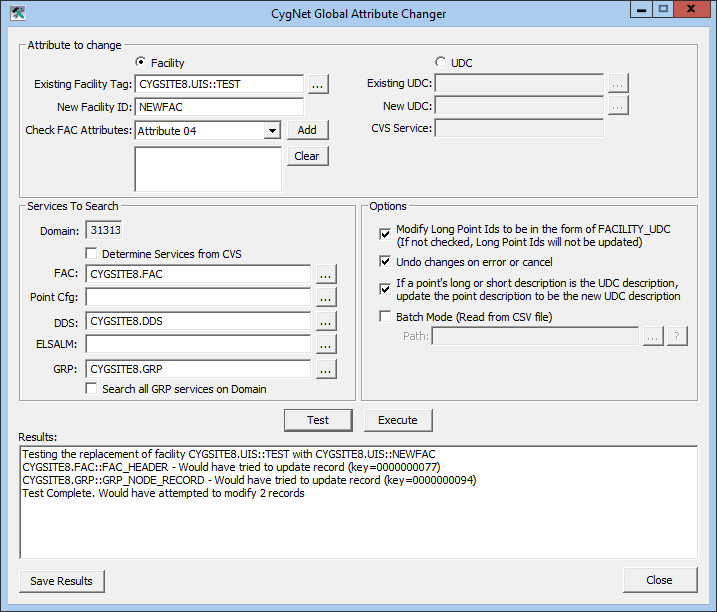
The CygNet Global Attribute Changer (GlobalChanger.exe) utility provides a method to change facility and UDC attributes globally.
The CygNet Global Attribute Changer utility is stored in the CygNet\Utilities directory on your host server.
Note: Changing Facility IDs and UDCs can have unknown effects upon the system. Since backups are overwritten each day, prior to using the Global Attribute Changer utility, it is recommended that you secure and save your backup in a separate location. Upon completion of the changes made, stop and restart all services.
The following table lists and describes properties of the Global Attribute Changer utility.
| Property | Description | |
|---|---|---|
| Attribute to change | ||
|
Facility |
Existing Facility Tag |
Click the browse button to open the Choose a facility to replace dialog box for selection of facility to be replaced. |
|
New Facility ID |
Enter the name of new facility. |
|
|
Check FAC Attributes |
Drop-down menu of facility and table attributes available. |
|
|
Add |
Click to include attribute from Check FAC Attributes drop-down menu. |
|
|
Clear |
Click to clear a selected attribute. |
|
|
UDC |
Existing UDC |
Click the browse button to open the Select Point dialog box to select the UDC to be replaced. |
|
New UDC |
Click the browse button to open the Select UDC by Category dialog box to select new UDC. |
|
|
CVS Service |
Populated with CVS Site.Service selection from Select Point dialog box. |
|
| Services To Search | ||
|
Domain |
Prepopulated with user domain. |
|
|
Determine Services from CVS |
When checked, utility determines the services to search and fields below check box are grayed out. |
|
|
FAC |
Click browse button to select FAC service to search. |
|
|
Point Cfg |
Click browse button to select PNT service to search. |
|
|
DDS |
Click browse button to select DDS service to search. |
|
|
ELSALM |
Click browse button to select ELS/ELSALM service to search. |
|
|
GRP |
Click browse button to select GRP service to search. Available when Search all GRP services on Domain is unchecked. |
|
|
Search all GRP services on Domain |
When checked, utility searches all GRP services on domain. |
|
| Options | ||
|
Modify Long Point Ids to be in the form of FACILITY_UDC (If not checked, Long Point Ids will not be updated) |
Check to update a long point ID to the FACILITY_UDC format. |
|
|
Undo changes on error or cancel |
Check to undo changes if an error occurs or ifcanceled. |
|
|
If a point’s long or short description is the UDC description, update the point description to be the new UDC description |
Check this option to replace the UDC if included in the point description. |
|
|
Batch Mode (Read from CSV file) |
Check and click the browse button next to the Path field to select a CSV file. |
|
|
Test |
Tests the change and produces a report in the Results field listing what changes would occur upon execution, giving the opportunity to make any necessary adjustments before proceeding. Note: Best practice recommends that you first test the change with the Test button and review the results before executing the change. |
|
|
Execute |
Executes the change. |
|
|
Results |
Displays results from Test or Execute. |
|
|
Save Results |
Saves the results displayed in the Results field in a text file. |
|
|
Close |
Closes and exits the utility. |
|
If you use the Global Attribute Changer utility to edit the facility IDs associated with meters or other items that were set up in FMS, you must update the affected IDs manually in FMS.
Note: FMS associates the meters it has configured with the meters in your DDS by data group (FmsConfig or GmrConfig) facility ID. If you want to change those in CygNet, you must also update them in FMS.
If Batch Mode (Read from CSV file) is chosen, the CSV file selected should have two columns with headers. The first column should contain the original Facility Tag or UDC and the second column should contain the new Facility ID or UDC. The same set of services will be used for the entire batch of changes.

|
|
|

